ip
Emergency Meeting User Guide
Emergency Meeting is a command-line task management application that helps you keep track of your tasks. This guide will walk you through the features and usage of Emergency Meeting. Let’s get started! 🚀
Table of Contents
Getting Started
To use Emergency Meeting, follow these simple steps:
-
Download and Install Java ☕
If you don’t have Java installed on your computer, you can download it here and follow the installation instructions.
-
Download Emergency Meeting JAR File 📥
Download the Emergency Meeting JAR file from the
Releasessection of our GitHub repository. -
Run Emergency Meeting 🏃
Open your command prompt or terminal, navigate to the directory where you saved the JAR file, and run Emergency Meeting by executing the following command:
java -jar emergency-meeting.jar -
Start Managing Your Tasks 📋
With Emergency Meeting up and running, you can start using it to manage your tasks efficiently!
-
A GUI similar to the one below should appear in a few seconds
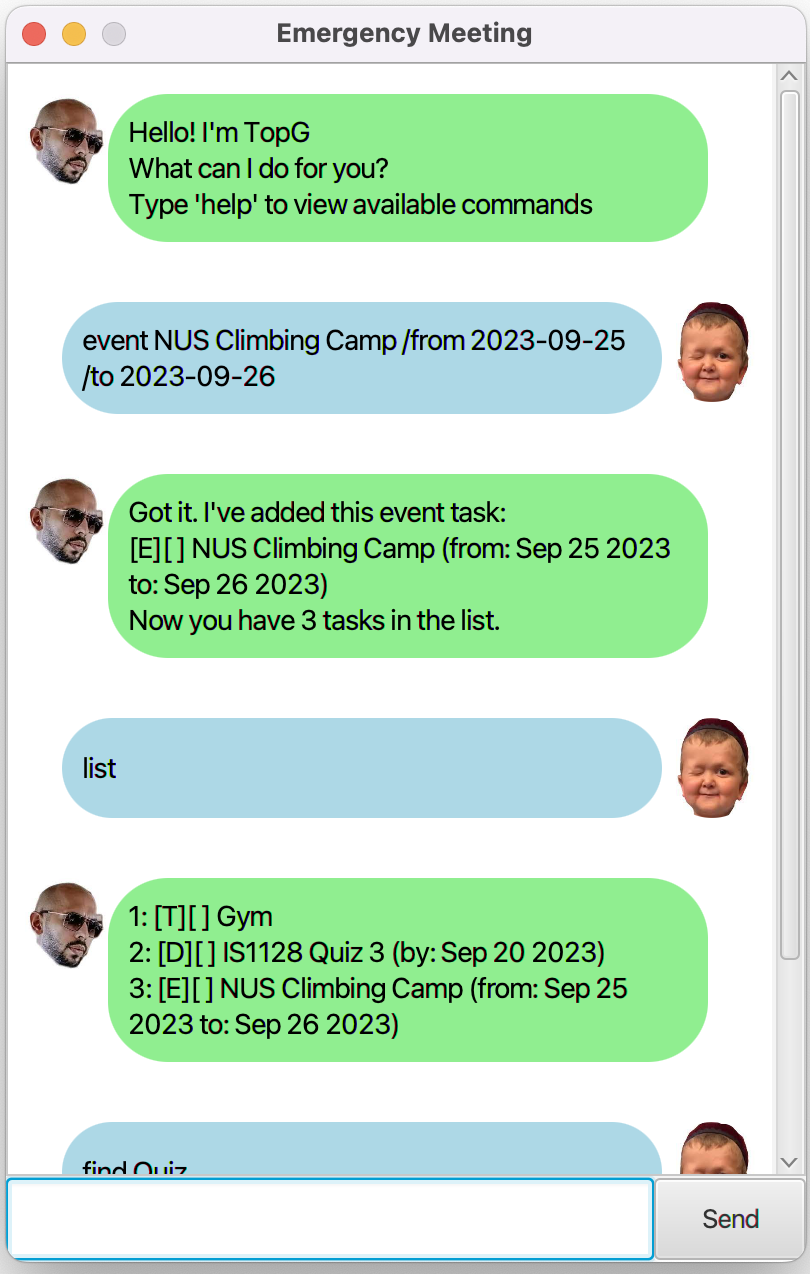
Enjoy using Emergency Meeting to stay organized and boost your productivity! 📅
Features
Add a Todo Task
You can add a new todo task to your task list.
Example of usage:
todo Buy groceries
Expected outcome:
Emergency Meeting will add the todo task and confirm it.
Got it. I've added this task:
[T][ ] Buy groceries
Now you have 1 task in the list.
Add a Deadline Task
You can add a new deadline task with a description and due date.
Example of usage:
deadline Submit report /by 2023-10-01
Expected outcome:
Emergency Meeting will add the deadline task and confirm it.
Got it. I've added this deadline task:
[D][ ] Submit report (by: Oct 01 2023)
Now you have 2 tasks in the list.
Add an Event Task
You can add a new event task with a description and start and end dates.
Example of usage:
event Team meeting /from 2023-09-20 /to 2023-09-21
Expected outcome:
Emergency Meeting will add the event task and confirm it.
Got it. I've added this event task:
[E][ ] Team meeting (from: Sep 20 2023, to: Sep 21 2023)
Now you have 3 tasks in the list.
List Tasks
You can view the list of all tasks in your task list.
Example of usage:
list
Expected outcome:
Emergency Meeting will display your list of tasks.
1: [T][ ] Buy groceries
2: [D][ ] Submit report (by: Oct 01 2023)
3: [E][ ] Team meeting (from: Sep 20 2023, to: Sep 21 2023)
Mark Task as Done
You can mark a task as done by specifying its task number.
Example of usage:
mark 1
Expected outcome:
Emergency Meeting will mark the task as done and confirm it.
Nice! I've marked this task as done:
[T][X] Buy groceries
Unmark Task as Undone
You can mark a task as undone by specifying its task number.
Example of usage:
unmark 1
Expected outcome:
Emergency Meeting will mark the task as undone and confirm it.
OK, I've marked this task as not done yet:
[T][ ] Buy groceries
Delete Task
You can delete a task by specifying its task number.
Example of usage:
delete 1
Expected outcome:
Emergency Meeting will delete the task and confirm it.
Noted. I've removed this task:
[T][ ] Buy groceries
Now you have 2 tasks in the list.
Find Tasks
You can search for tasks with a specific keyword.
Example of usage:
find report
Expected outcome:
Emergency Meeting will display a list of tasks that match the keyword.
1: [D][ ] Submit report (by: Oct 01 2023)
Help
You can view the list of available commands at any time.
Example of usage:
help
Expected outcome:
Emergency Meeting will display the available commands.
Here are the available commands:
1. bye - Exit the program
2. list - List all tasks
3. mark <taskNumber> - Mark a task as done
4. unmark <taskNumber> - Mark a task as undone
5. delete <taskNumber> - Delete a task
6. todo <description> - Add a new todo task
7. deadline <description> /by <dueDate> - Add a new deadline task
8. event <description> /from <startDate> /to <endDate> - Add a new event task
9. help - Displays the available commands
10. find <keyword> - Search for tasks with a keyword
Exit
You can exit the program at any time.
Example of usage:
bye
Expected outcome:
Emergency Meeting will bid you farewell.
Bye. Hope to see you again soon!